Leaderboard




Popular Content
Showing content with the highest reputation on 03/29/26 in all areas
-
@jonp @mill30002 points
-
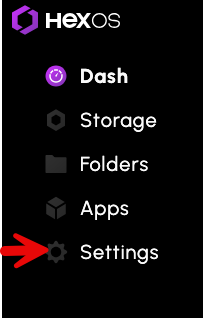
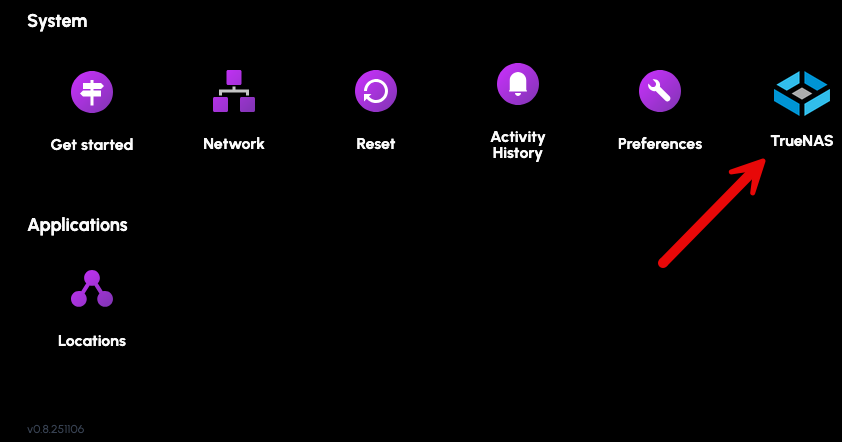
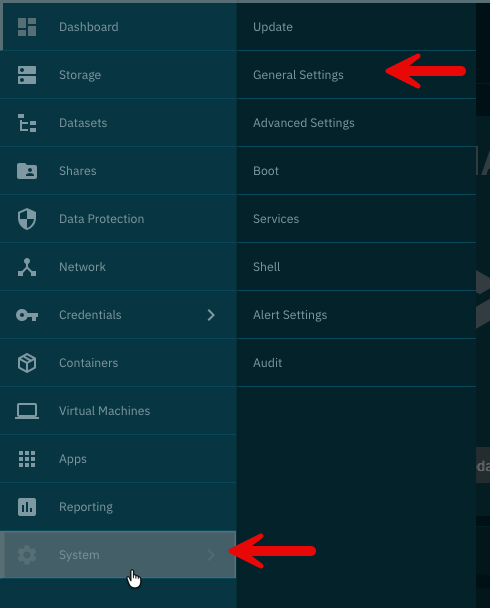
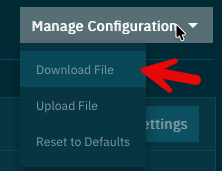
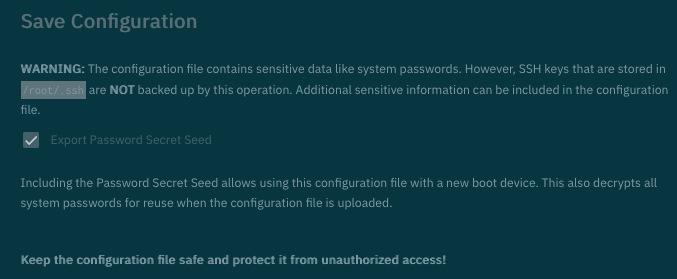
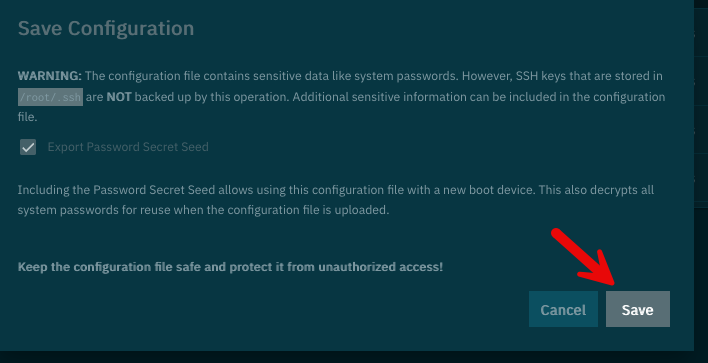
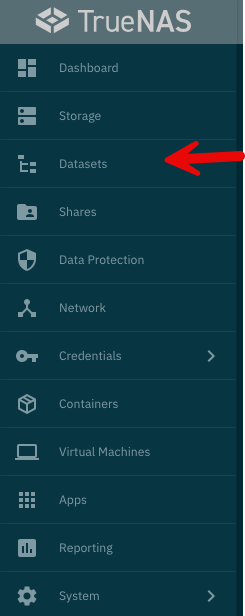
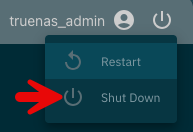
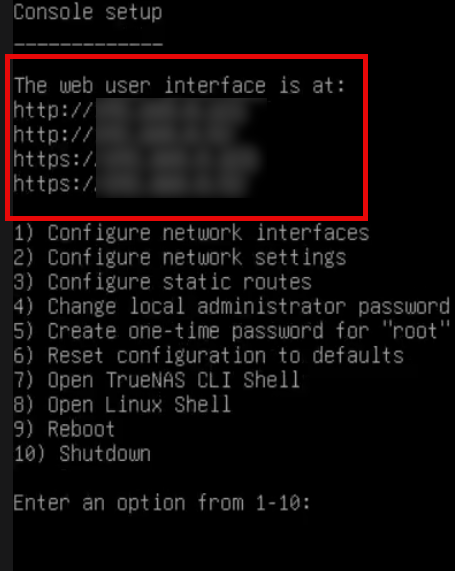
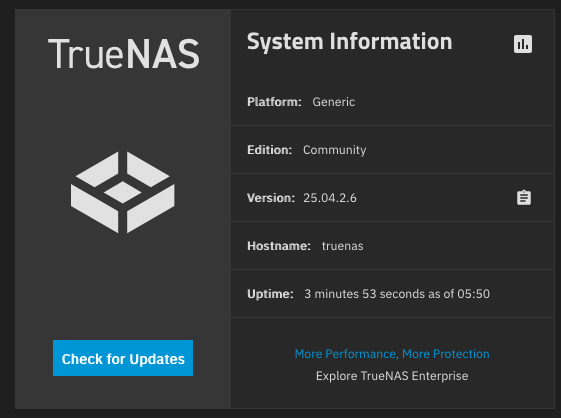
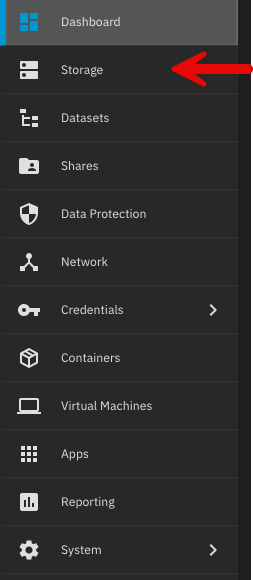
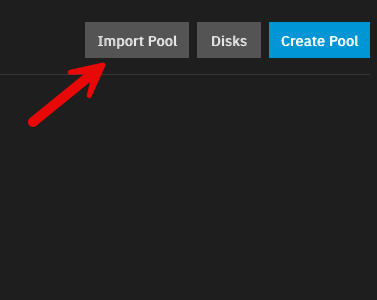
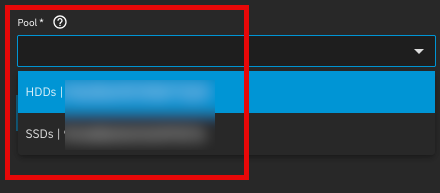
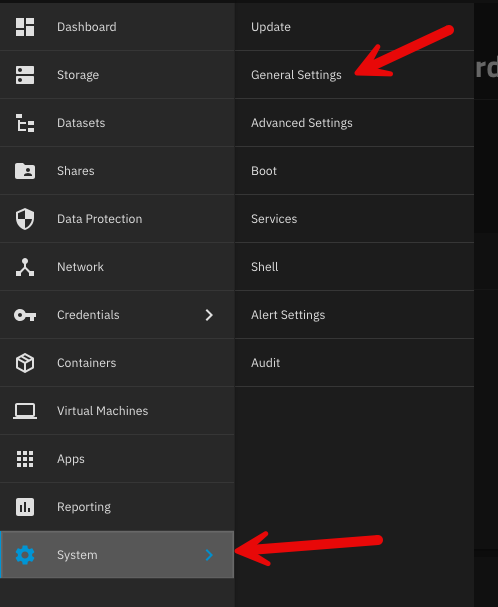
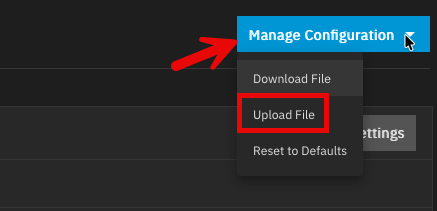
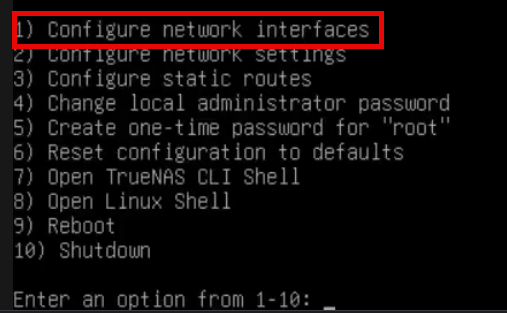
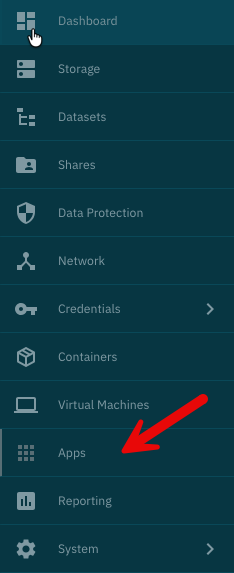
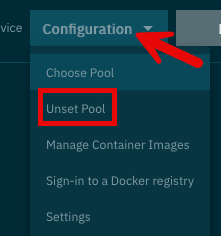
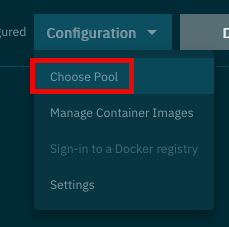
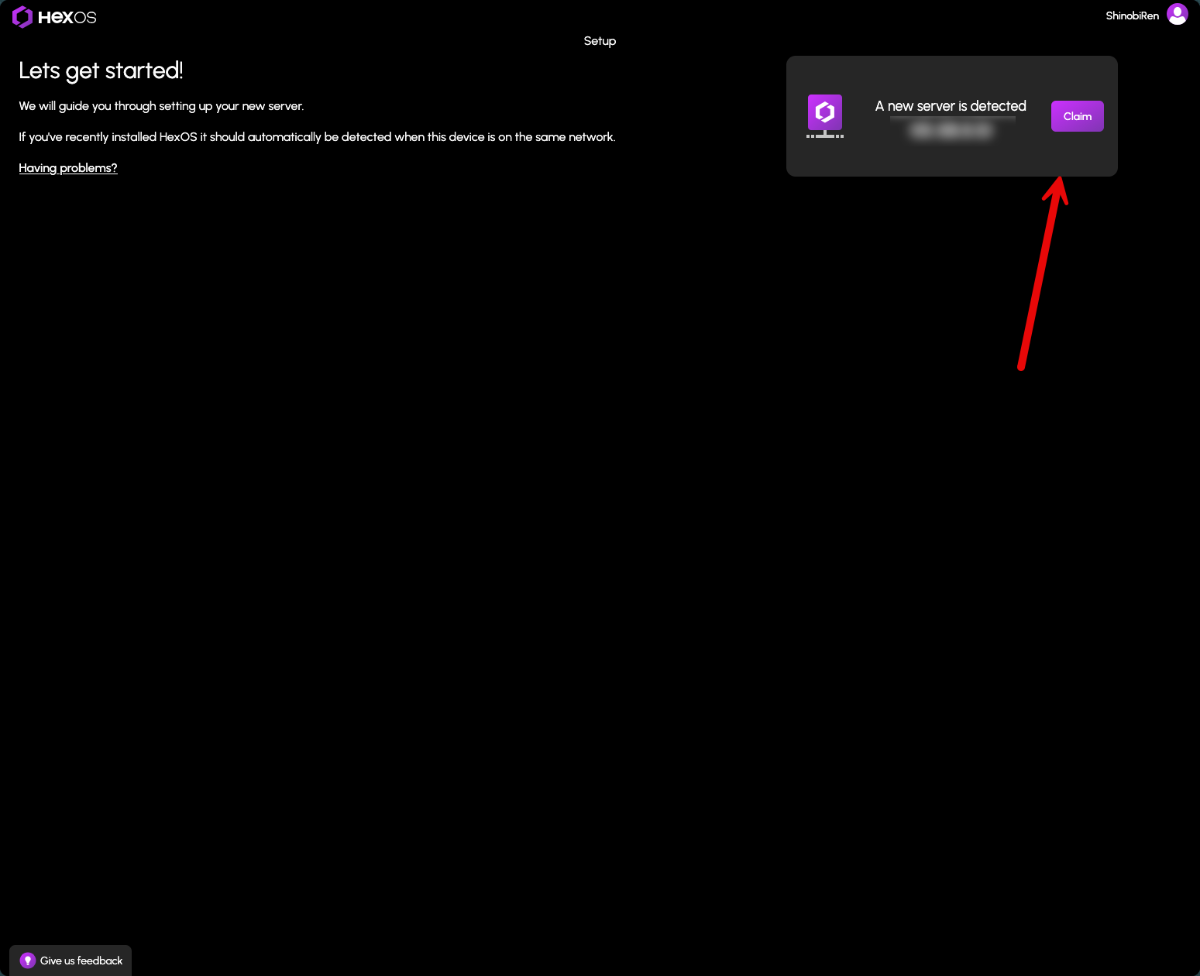
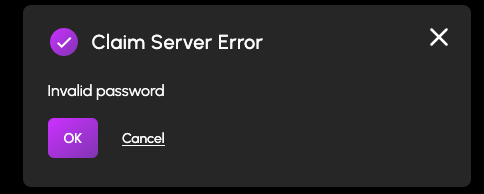
First, a huge thank you to @lnkd for posting the actual steps to do this. All I did was follow everything they said and take pictures, so really all credit goes to them. Original post here: Prepare TrueNAS for reinstall: 1. Login to TrueNAS web interface – go to deck.hexos.com and click Settings: Then click the TrueNAS icon: 2. Once logged into TrueNAS, go to System > General Settings > Manage Configuration > Download File: 3. Read the note presented when you click Download File: 4. Click Save: 5. If you have encrypted datasets, go to Datasets > select the encrypted dataset > Export Key: 6. Now it is time to shutdown the server. In the top right of the TrueNAS web UI click the power icon and click shutdown: 7. Make your changes to the hardware that you would like – for me I added a 10 GB network card to run off fiber. 8. Prepare the HexOS installation drive by following these steps: https://hub.hexos.com/topic/103-illustrated-installation-guide-start-here/ 9. In your router settings, give the new hardware the same IP as your old one, then restart TrueNAS to grab the correct IP. 10. Once rebooted you can confirm on the server the IP address is correct: 11. Login to the TrueNAS web interface with the username and password you set during install (username should be truenas_admin). 12. Confirm your version on the dashboard – if needed, apply the update to the server: a. To confirm what version you need check the filename of the .tar file you downloaded from your configuration. It will have the version number on the end of it. b. Select the same version from the upgrade screen and confirm you want to switch to that upgrade train. c. Apply the pending updates and the system will reboot. 13. Go to Storage > Import Pool > find your zpool: 14. I have two pools so I will import them both. 15. Go into System > General Settings > Manage Configuration > Upload file: 16. The server will reboot after the configuration is applied. Log back into the TrueNAS server once the reboot is finalized. 17. If, like me, you replaced the network cards you will need to login directly to the server and adjust the IP settings: 18. Setup your new interface with the primary IP in CIDR notation, then you can log back into the TrueNAS server. 19. To setup apps, you need to go to Apps > Configuration > Unset Pool: 20. Restart your TrueNAS server then go back into Apps > Configuration > Choose Pool: 21. Once the pool is set you will see your apps again and be able to start them. 22. Navigate to the HexOS Interface (http://deck.hexos.com), unclaim your old server and claim your new one: 23. I ran into an issue where no matter what password I input it would not take it: 24. Currently troubleshooting that to be able to claim my HexOS server in the deck. All of my apps and storage are up and running so I will report back here when I fix this issue.
 1 point
 -
I will be having family use my server for backing stuff up and as we all know end users always end up accidently deleting things and then wanting them back. Luckily, TrueNAS has a recycle bin option and hopefully HexOS can add it in one day as a setting that can just be turned on. For anyone who finds this and wants to do it, here are the steps: Set up the folder in the HexOS UI and then in the TrueNAS UI go to: Shares > Click edit on the SMB you want to add the recycle bin too > Purpose = No Presets > Click Advanced Options > Scroll to Other Options > Check Export Recycle Bin Then you will want to set up a job to automatically empty your recycle bin: Navigate to Chron Jobs in the TrueNas UI (just search for it but it's under System > Advanced Settings). Click add then you can either enter this into the command field as ONE LINE or save it to a file find /mnt/HDDs/FOLDER/.recycle/* -atime +30 -delete; find /mnt/HDDs/FOLDER/.recycle/* -depth -type d -empty -delete; If you want to test to see what files will be deleted with this command run it without the "-delete" If you save it to a file (like I did) you will enter this as the command. sh /mnt/HDDs/PATH_TO_FILE/empty_recycle_bin.sh Then just fill out the description, run as truenas_admin, and how often you want it to run and you are good to go. Hope this helps and hopefully it can just be a 1 click type of setup in the future!! P.S. Here is what the commands do: The first command searches for files and directories in /mnt/HDDs/FOLDER/.recycle/ that have not been accessed in the last 30 days and deletes them. The second command searches for empty directories in /mnt/HDDs/FOLDER/.recycle/ and deletes them. Also commands were stolen from here1 point
-
Yeah, I’m pretty keen to see this as an app or container. Crosstalk stated they’ll look at those features once all the main stuff is sorted out1 point
-
I messaged the user. Thanks for the shoutout!1 point