

ShinobiRen
-
Posts
53 -
Joined
-
Last visited
-
Days Won
1
Recent Profile Visitors
1145 profile views





ShinobiRen's Achievements






-
I did not. I had to manually reconfigure the permissions for users. Apps stayed in place without needing to do anything to the datasets.
-
I just ran through this this morning. The permissions for all my apps stayed in place without issue, however it looks like user permissions are gone - the users still exist, but their permissions to their shares/folders are missing currently. Going to give it a bit of time to see if it rebuilds it later on. Will update if that changes or if I need to manually add them back.
-
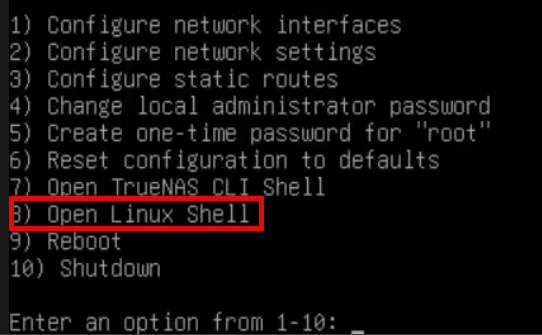
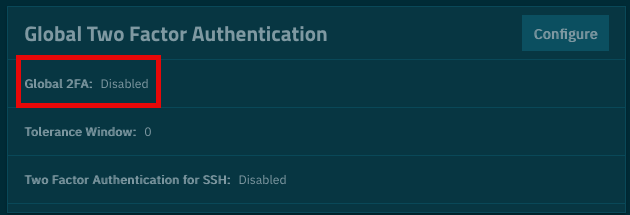
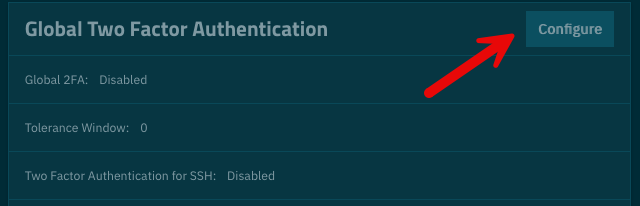
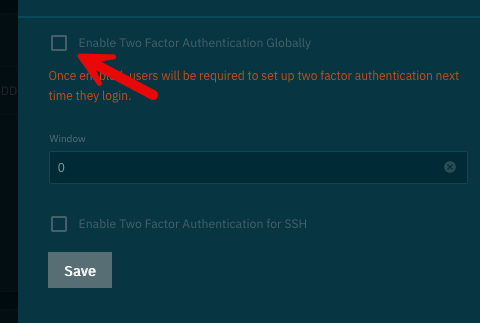
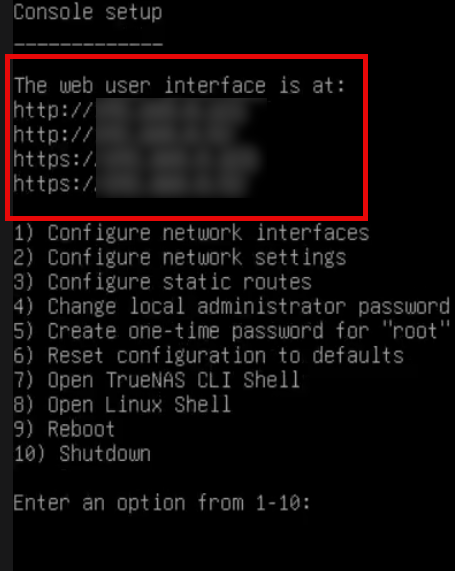
As a bonus: If your server did what mine just did and completely freaked out on 2FA (NTP was setup and sync'd properly, 2FA code sync'd properly... fun times) this handy script will save you. Steps: 1. Login locally to the device. 2. Select Option 8: Open Linux Shell: 3. Type this code in: midclt call auth.twofactor.update '{"enabled": false}' 4. Login with your username and password, select System > Advanced Settings. 5. Scroll all the way down and confirm Global Two Factor Authentication is Disabled:

-
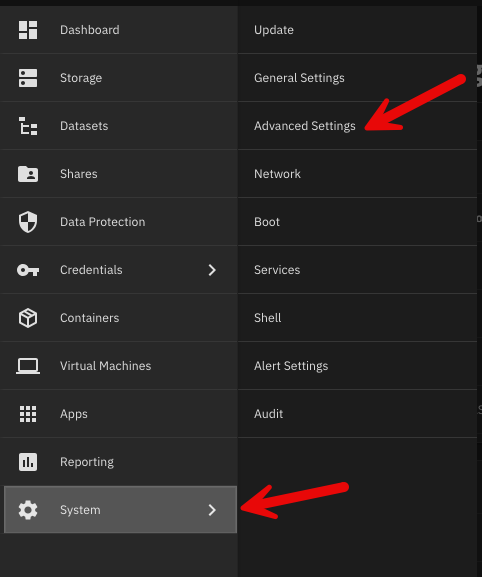
As an update to the guide above: On step 2 and step 15, the interface has changed where to export and upload the configuration file as of version 25.10.2.1. The new location is here: System > Advanced Settings.
-
I got this working by doing a manual install of the docker compose file found here: https://docs.coolercontrol.org/installation/docker.html To manually install it, in TrueNAS go to Apps, Discover Apps, then click the three dots in the top right corner and load Yaml. You can leave the compose as is and it will work. You need to follow the guide below to setup the hardware for it. Specifically for TrueNAS that is running this command in shell and following the prompts: sudo sensors-detect To setup everything prior to that follow the guide here: https://docs.coolercontrol.org/hardware-support.html
-
This was a while ago so I am unsure. I do not remember having to reset any permissions on the datasets I had though. I'm waiting on a secondary Dell server to come in and am going to spin up my test HexOS machine again, so I can let you know on that one once I get all that setup.
-
Just here to say - you guys are awesome and thanks for keeping your promises! I'm perfectly fine with deck and enjoy being able to pull up the stats quickly anywhere I am, but local hosting is so important to this community, so thank you.
-
I have the Intel X520 card in mine (SFP instead of RJ45) and it worked after a reinstall of HexOS. I recommend using Fiber when you can because RJ45 gets hot quickly, Also make sure it's not a clone card, they seem to be out there in the wild quite often. One final thing - with mine it only wanted to use the Intel SFP modules, probably not an issue with just RJ45 though if you run into it you can flash the EEPROM on the to accept any modules.
-
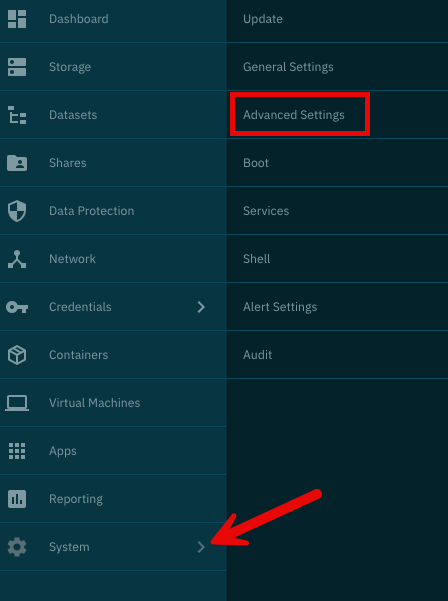
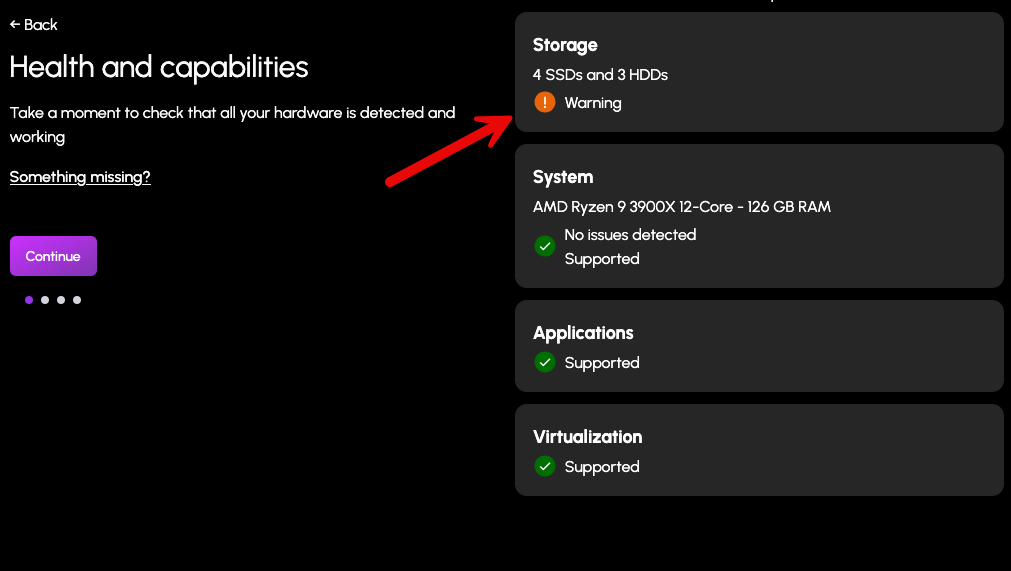
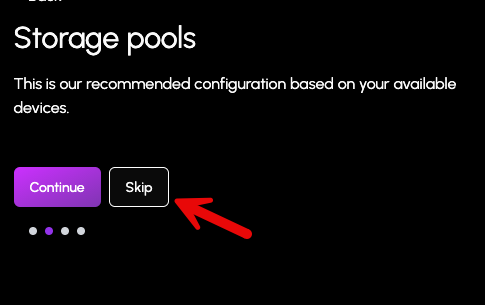
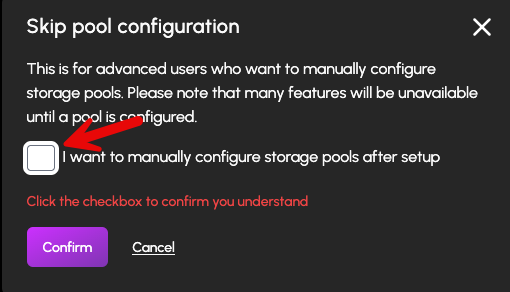
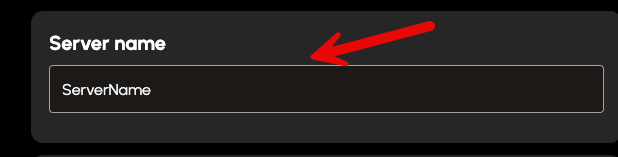
1. The issue was caused by 2FA being turned on by the configuration import. To resolve it all I did was go to System > Advanced Settings and turn off Global 2FA: 2. Once you have that resolved HexOS will now see your server and note a warning on your Storage. This is a good thing. 3. Move to the next screen and skip creating a pool. 4. Give your server a name and you are finished!
-
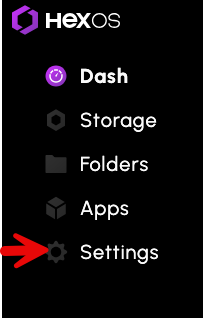
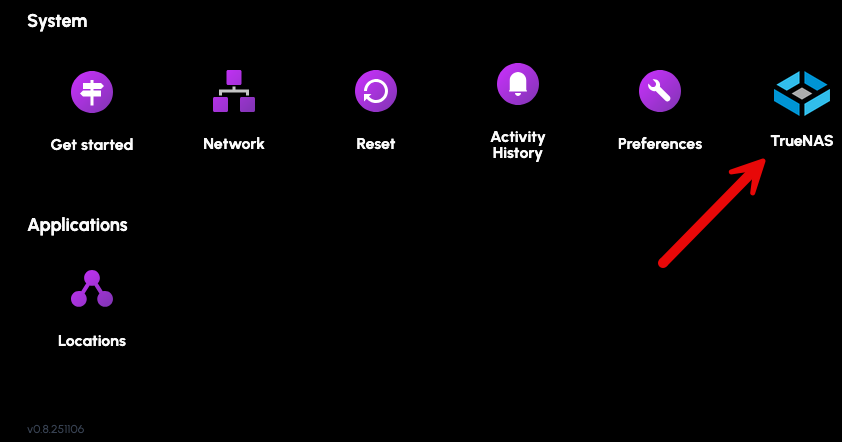
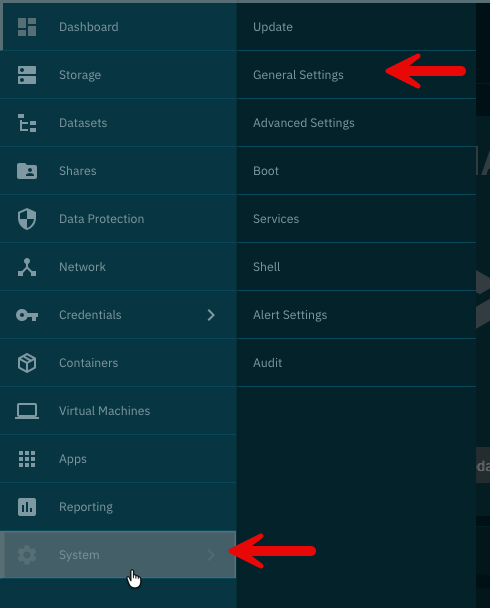
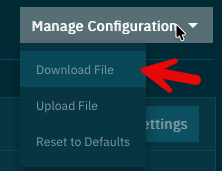
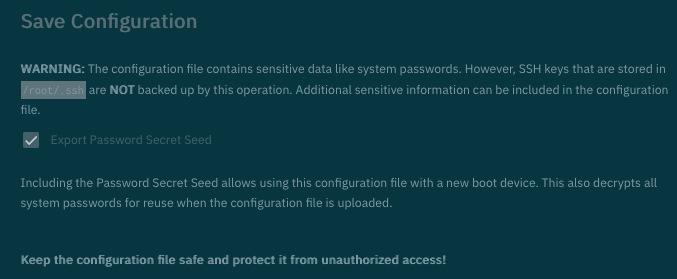
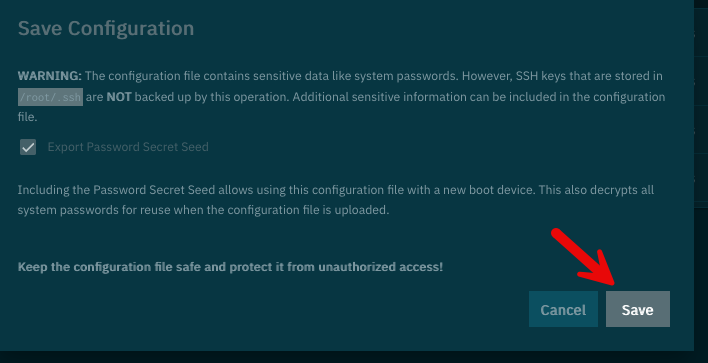
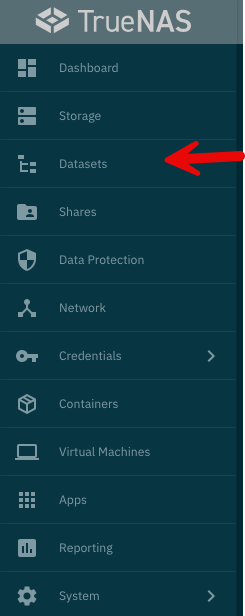
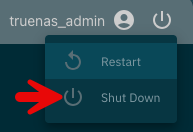
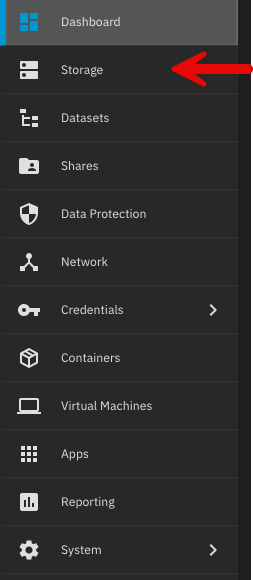
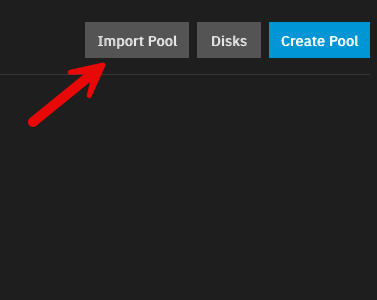
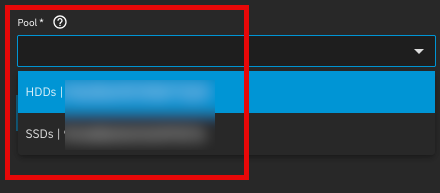
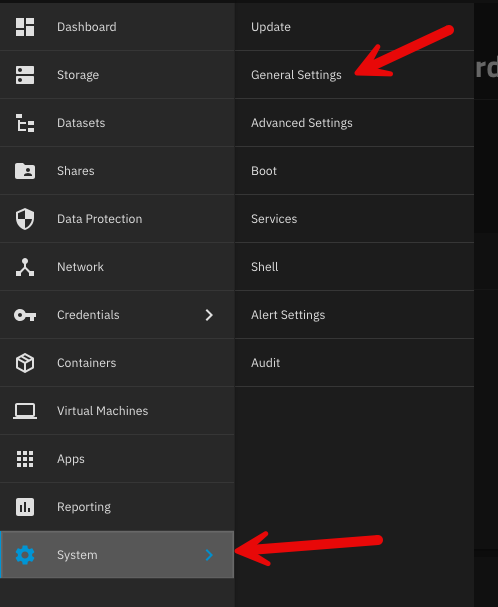
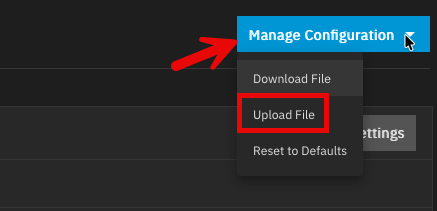
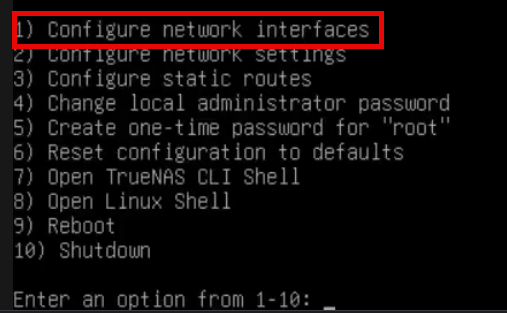
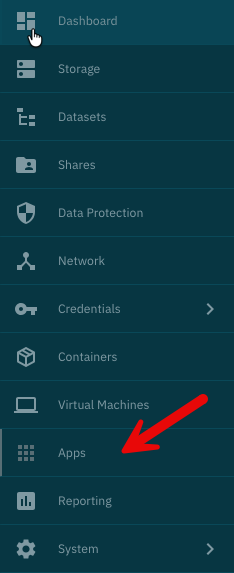
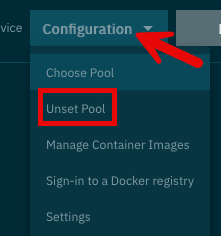
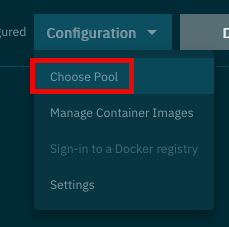
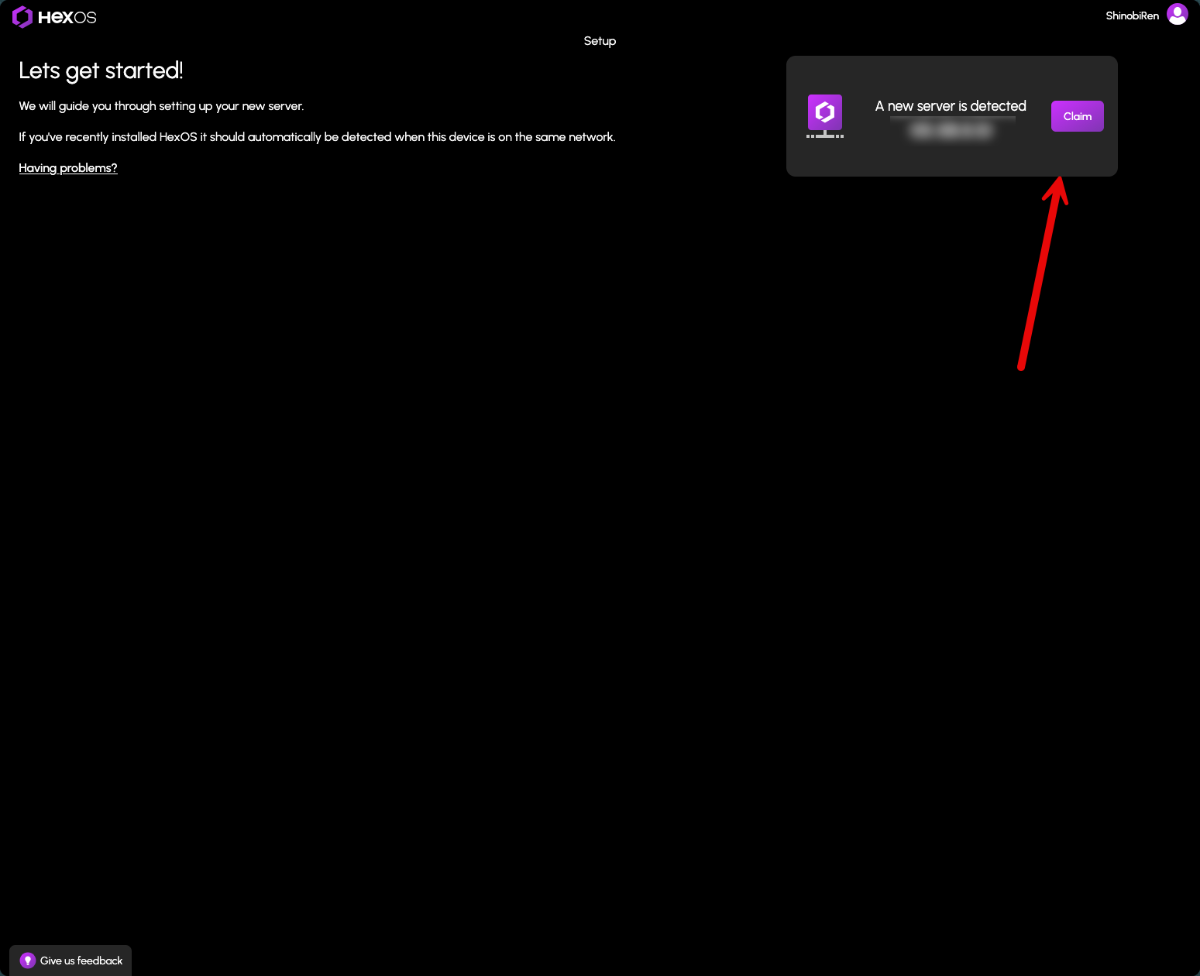
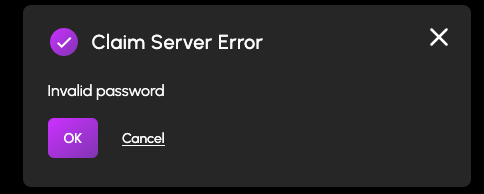
First, a huge thank you to @lnkd for posting the actual steps to do this. All I did was follow everything they said and take pictures, so really all credit goes to them. Original post here: Prepare TrueNAS for reinstall: 1. Login to TrueNAS web interface – go to deck.hexos.com and click Settings: Then click the TrueNAS icon: 2. Once logged into TrueNAS, go to System > General Settings > Manage Configuration > Download File: 3. Read the note presented when you click Download File: 4. Click Save: 5. If you have encrypted datasets, go to Datasets > select the encrypted dataset > Export Key: 6. Now it is time to shutdown the server. In the top right of the TrueNAS web UI click the power icon and click shutdown: 7. Make your changes to the hardware that you would like – for me I added a 10 GB network card to run off fiber. 8. Prepare the HexOS installation drive by following these steps: https://hub.hexos.com/topic/103-illustrated-installation-guide-start-here/ 9. In your router settings, give the new hardware the same IP as your old one, then restart TrueNAS to grab the correct IP. 10. Once rebooted you can confirm on the server the IP address is correct: 11. Login to the TrueNAS web interface with the username and password you set during install (username should be truenas_admin). 12. Confirm your version on the dashboard – if needed, apply the update to the server: a. To confirm what version you need check the filename of the .tar file you downloaded from your configuration. It will have the version number on the end of it. b. Select the same version from the upgrade screen and confirm you want to switch to that upgrade train. c. Apply the pending updates and the system will reboot. 13. Go to Storage > Import Pool > find your zpool: 14. I have two pools so I will import them both. 15. Go into System > General Settings > Manage Configuration > Upload file: 16. The server will reboot after the configuration is applied. Log back into the TrueNAS server once the reboot is finalized. 17. If, like me, you replaced the network cards you will need to login directly to the server and adjust the IP settings: 18. Setup your new interface with the primary IP in CIDR notation, then you can log back into the TrueNAS server. 19. To setup apps, you need to go to Apps > Configuration > Unset Pool: 20. Restart your TrueNAS server then go back into Apps > Configuration > Choose Pool: 21. Once the pool is set you will see your apps again and be able to start them. 22. Navigate to the HexOS Interface (http://deck.hexos.com), unclaim your old server and claim your new one: 23. I ran into an issue where no matter what password I input it would not take it: 24. Currently troubleshooting that to be able to claim my HexOS server in the deck. All of my apps and storage are up and running so I will report back here when I fix this issue.
-
Awesome! Thank you for this - makes me feel a bit more confident going into this weekend.
-
I am actually thinking this might be the only way to get my TrueNAS install to see my newly installed 10GB SFP+ card. If you have already done it @lnkd can you let me know if this worked out well for HexOS? If you haven't I am planning on doing it this weekend and writing a full guide for the process for anyone else to use.
-
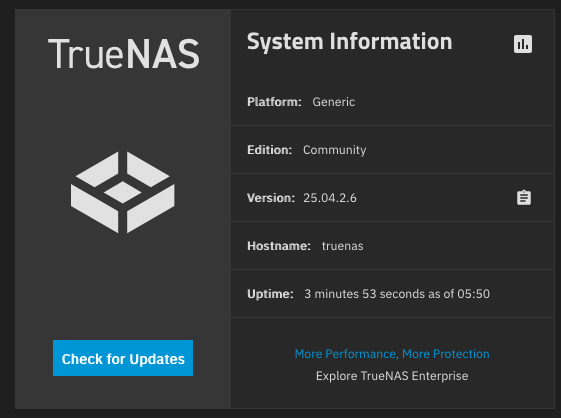
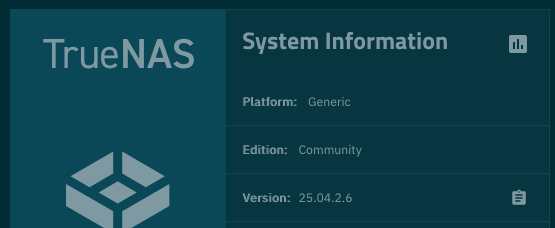
 I also had the same error and can confirm I am updated to 25.04 Fangtooth from TrueNAS: Might be a good idea to add a panel like this to the deck to confirm the version number, or if there is already one I cannot seem to find it.
-
Right side toggles but closer to the settings (words) they accompany. Thanks!
-
Quite a bit faster for me as well. Thanks!