Leaderboard




Popular Content
Showing content with the highest reputation on 01/17/26 in Posts
-
Sem problema, meu amigo, eu só queria ter certeza de que entendo o nível de NECESSIDADE vs. DESEJO. 😄 So I will be upfront, I am new to Nextcloud also, but I've read some of the documentation and have gleaned the following to your questions. Yes, it would seem ExApps need to un as their own separate containers. They don't run into the Nextcloud app itself. You do need a separate service called HaRP proxy to act as the bridge. Since HexOS is based on TrueNAS SCALE, you usually have to deploy HaRP as a Custom App using the the image found at, ghcr.io/nextcloud/nextcloud-appapi-harp:release. I did find this video helpful, maybe this could be your starting off point. I would highly suggest that you spin up some sort of sandbox environment to play around with. Not sure if forcing this rather messy setup into HexOS right now. Maybe in the future someone will develop an automation for it but... couldn't even guess when that could be. Sorry I don't have much to offer at this time. I'm not able to play around with Nextcloud to that depth until i get some other things figured out.1 point
-
Hello, It seems the after the update some systems on reboot are reaching out to our server so it doesn't know your there. Try the following. Login to TrueNAS interface. Left side select "system". Then after screen refreshes select "shell" from the list. Paste in the following command. Can't use normal short cuts Will need to use Shift + Insert Key for pasting. sudo python /usr/lib/python3/dist-packages/middlewared/scripts/vendor_service.py If that works within about 1 min you should be able to go to deck.hexos.com and see your server or claim it.1 point
-
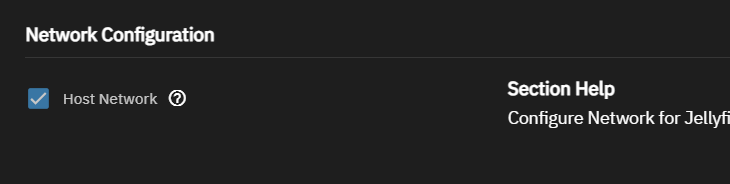
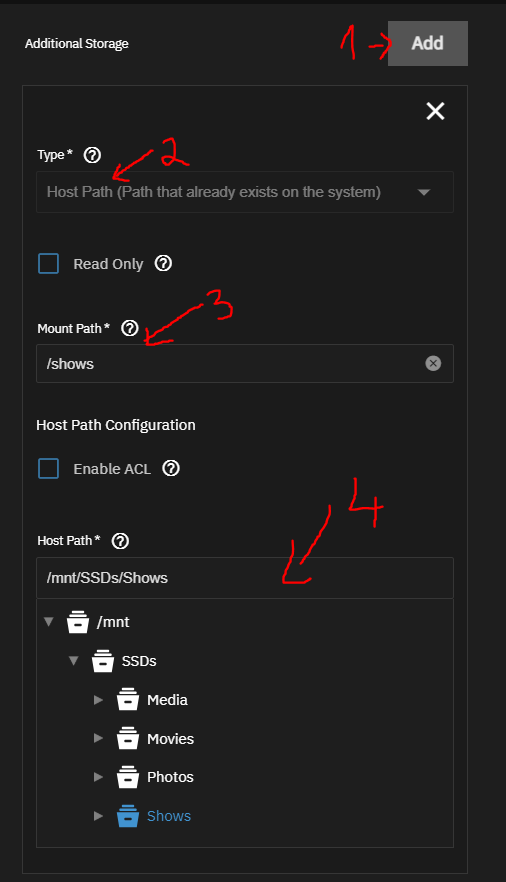
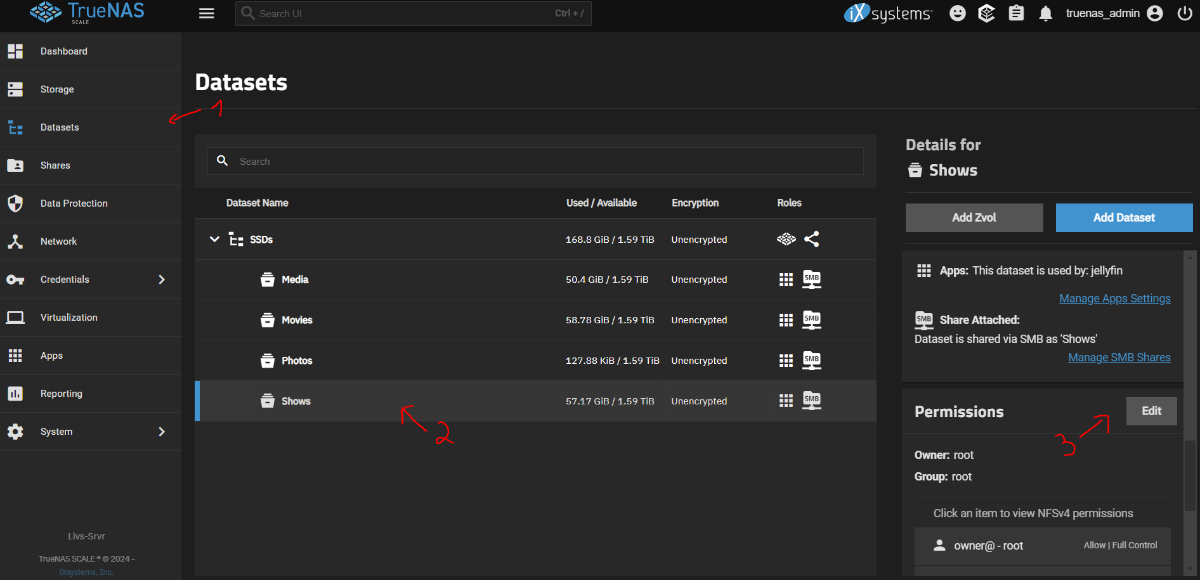
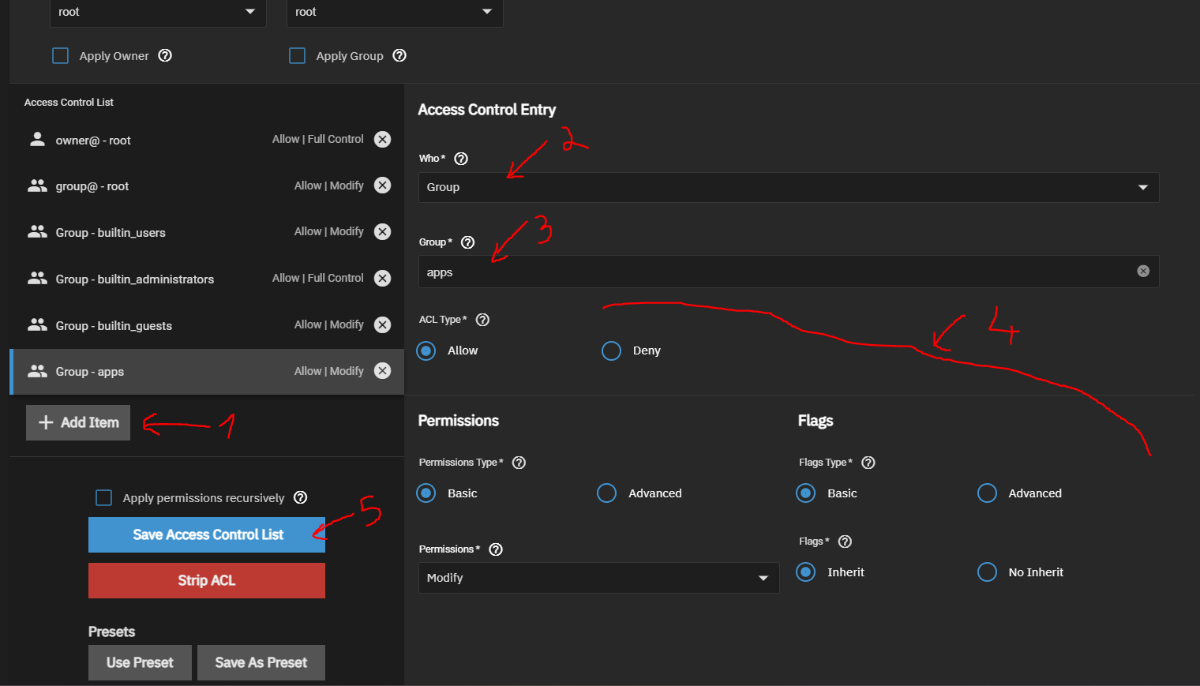
also, a quick tutorial how i set up Jellyfin: Create a public folder in HexOS Go to apps in HexOS, go to Jellyfin, and click Install. It will open TrueNAS UI. user is truenas_admin and password is the HexOS password. (If it sends you to TrueNAS dashboard, go back to HexOS, Jellyfin, and click on Install again) Under Network Configuration check Host Network Under Additional Storage, click Add, choose Host Path, in Mount Path is how the folder will look in jellyfin, in Host Path find the folder you created in HexOS. Thats it for the settings, click Install at the bottom Now in TrueNAS UI go to Datasets, click on the folder created in HexOS, scroll down to Permissions, and click Edit Click Add Item, Who: Group, Group: apps. (you need to scroll at the end once or twice to be able to see full list, then find apps, should be near the end, its not in alphabetical order). Set permissions like in the picture, then click Save Access Control List. Thats it for folder permissions. Go to Apps, jellyfin, and click on Web UI. Then from there set up Jellyfin as normal, when u click on +Folders you should be able to see the folder you added in Host Path, /shows in my case. Thats it, jellyfin should work as normal now, just as if you set it up on your windows machine.
 1 point
 -
I'm legally blind and depend on High Contrast Mode to be able to read content, this is a fairly common issue across many services but i thought i'd mention it here as well that certain buttons are invisible when in High Contrast Mode. Attached is a screenshot illustrating this. (I've also just now noticed this also happens on your website)
0 points